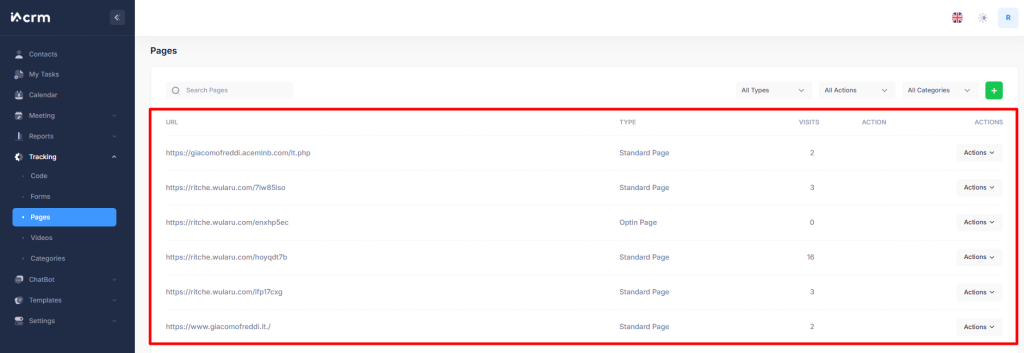
The dashboard provides an overview of all tracked URLs.
To Get Started
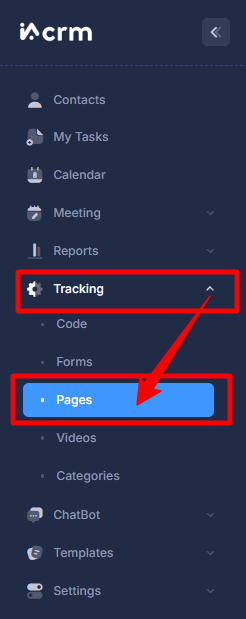
- Locate the Tracking menu in the left-hand sidebar.
- Click to expand the menu and select Pages.
Adding a New Page
To begin tracking a new URL:
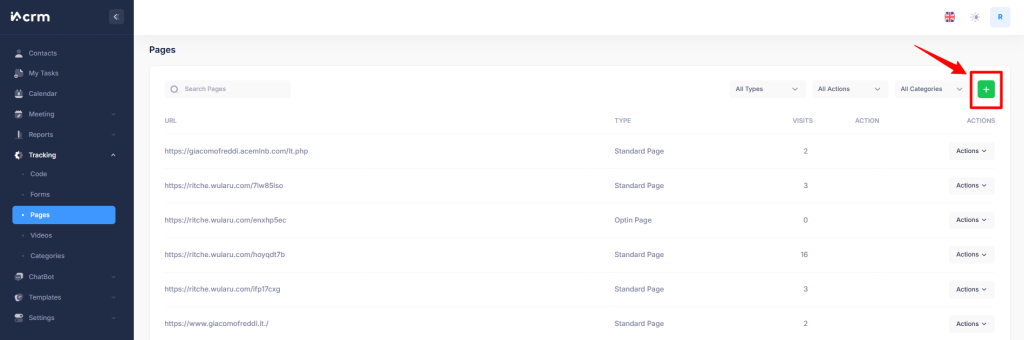
- Click the green + (Plus) button located at the top right of the table.
- The Add Page window will appear.
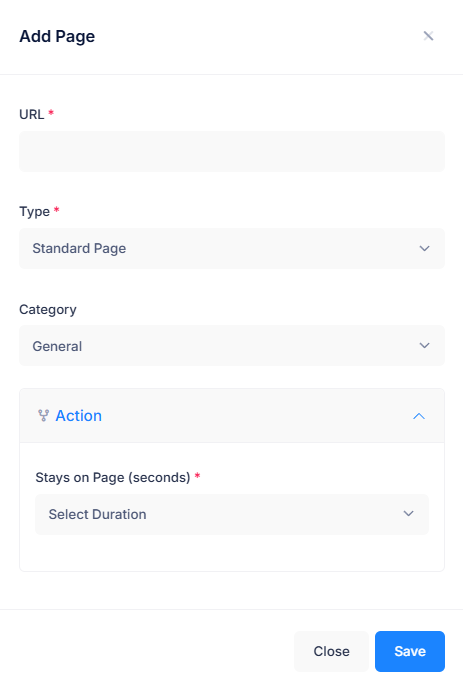
- Enter the Page URL.
- Assign a Page Type by selecting the appropriate category from the dropdown menu (e.g., Standard, Sales, or Optin).
- Select a Category from the dropdown menu to help organize your Page. To manage your categories, navigate to Tracking > Categories, or simply click +Add new category directly from the dropdown menu.
Page Action
When adding or editing a page, you can set up automated tasks that occur when a user visits the URL. These are found under the Action accordion.
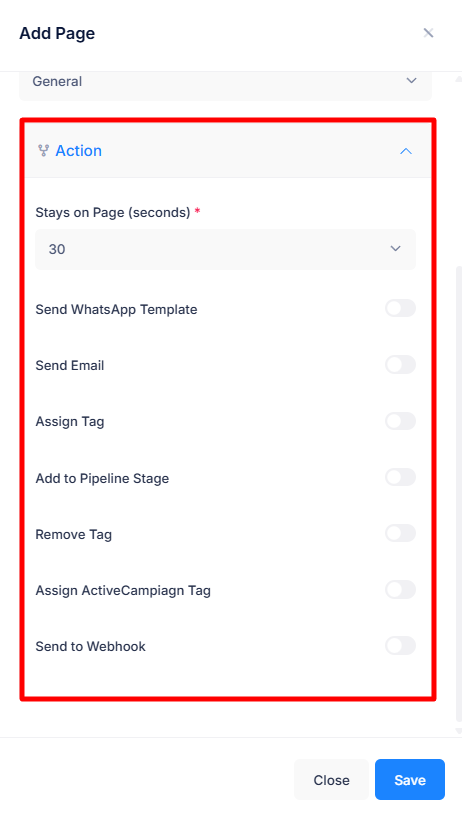
- Stays on Page (seconds): Use this dropdown to select how long a visitor must remain on the page before an action is triggered (e.g., 30 seconds).
You can toggle the following options ON or OFF to automate your workflow:
- Send WhatsApp Template: Automatically sends a pre-approved WhatsApp message to the contact.
- Send Email: Triggers an automated email to be sent to the visitor.
- Assign/Remove Tag: Adds or removes internal organizational tags to the contact’s profile.
- Add to Pipeline Stage: Automatically moves the contact to a specific stage in your sales pipeline.
- Assign ActiveCampaign Tag: This will sync a specific tag to your ActiveCampaign account.
- Send to Webhook: Sends the visitor’s data to an external third-party application via a webhook URL.
Click the Save button to apply your changes and activate the tracking/actions or click Close to exit the configuration without saving.
Search and Filter
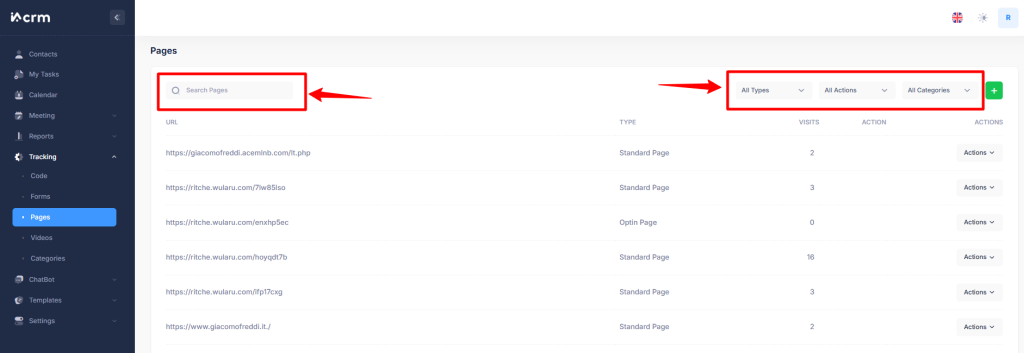
- Search: Use the Search Pages bar to find specific URLs.
- Global Filters: Narrow your list using the All Types, All Actions, and All Categories dropdown menus at the top right.
Page Table
The main table provides a real-time overview of your page performance:
- URL: The specific web address being tracked.
- Type: Categorizes the page (e.g., Standard Page or Optin Page).
- Visits: The total number of unique hits recorded for that URL.
- Action: A green checkmark indicates that an automated Action has been configured for this page.
- Actions Menu: Click the Actions dropdown on any row to Edit or Delete specific page details.