Meeting Scheduling Link
This section contains the unique scheduling link for the specific Sales Agent.
To get the link:
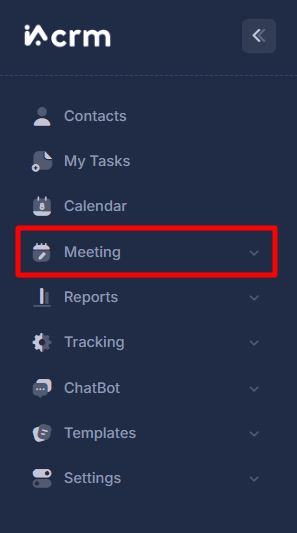
- On the left sidebar, click on Meeting.
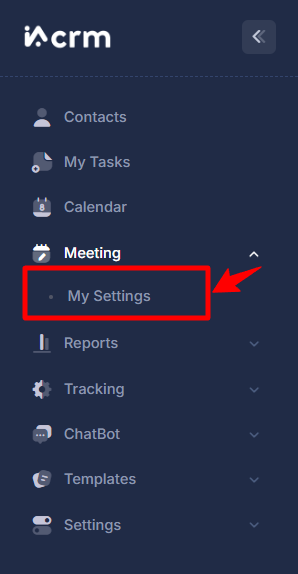
- Click on the My Settings tab.
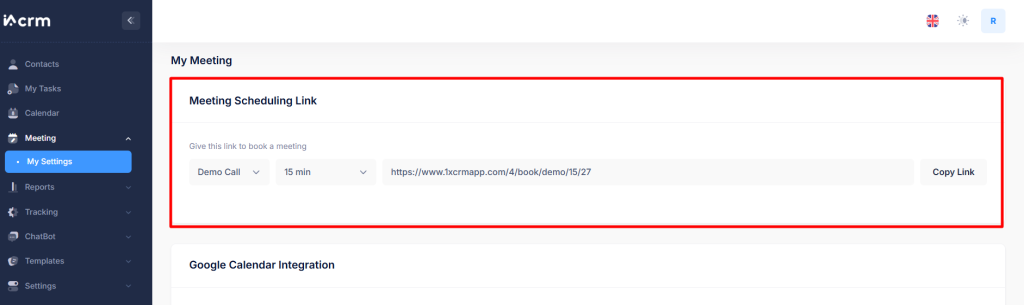
- Look for the Meeting Scheduling Link section. Under the label “Give this link to book a meeting,” you will find the URL.
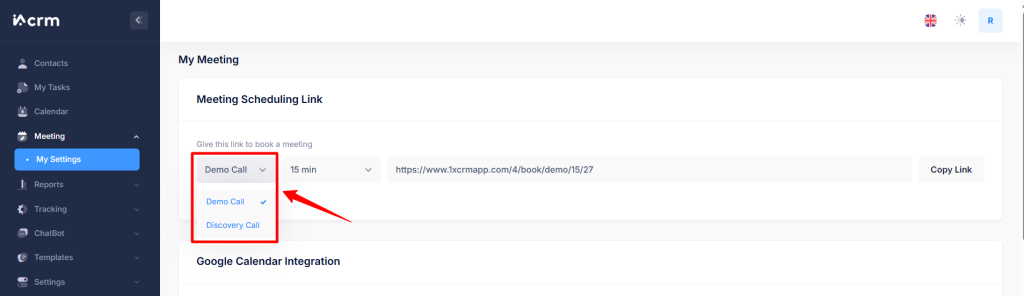
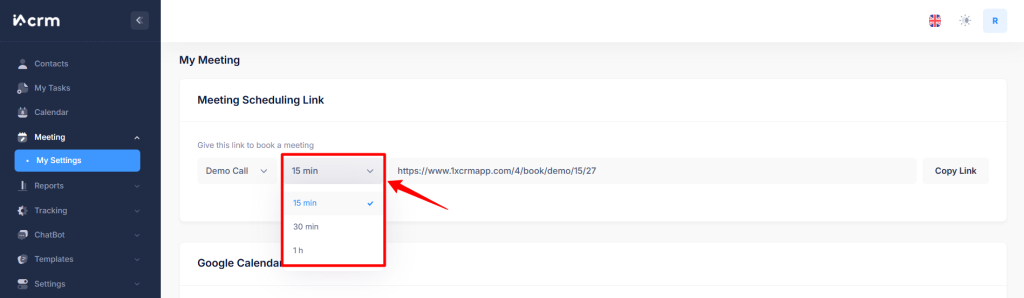
- On the right side, click the dropdown menu to select the call type: either Demo Call or Discovery Call.
- Select your preferred duration from the second dropdown. (Note: Available options are determined by the durations configured under Settings > Meeting > Meeting Duration.)
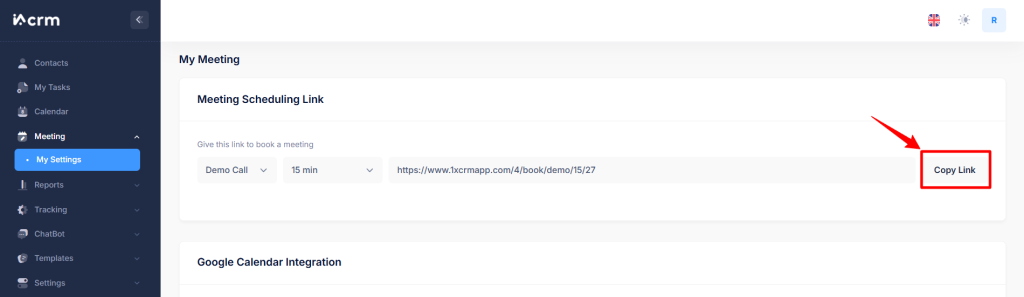
- The meeting URL will be auto populated in the link field. Click the Copy Link button to copy it to your clipboard and share it with your contacts.
Client Meeting Experience & Interface
1. Booking and Language Selection
Once a prospective client or contact opens the meeting link, they can schedule a call directly with the sales agent. To ensure a localized experience:
- Language Toggle: Hover the mouse pointer over the flag icon in the upper-right corner.
- Available Options: Users can currently choose between English and Italian.
2. Pre-Meeting Landing Page
After a client successfully books a meeting and visits the online meeting URL, the page serves as a waiting room:
- Status: The page displays the scheduled date and time of the meeting.
- No buttons (such as “Join”) will be visible at this stage to prevent early entry.
3. Joining the Meeting
The interface is time-sensitive to ensure both parties arrive as scheduled:
- The “Join” Button: This button appears automatically 5 minutes before the scheduled start time. Prior to this 5-minute window, the button remains hidden.